
It's the night before the quiz. You have a 40-page lecture PDF, three other courses, and no idea where to start. "I'll just get AI to summarize it" sounds like the answer, and it can be, if you do it the right way.
A summary you only read is gone by the morning. A summary you build, check and put in your own words is the one you'll remember in the exam hall. This guide walks you through a method that works in eight steps, with any AI tool, and shows how to do each step in Taziz.
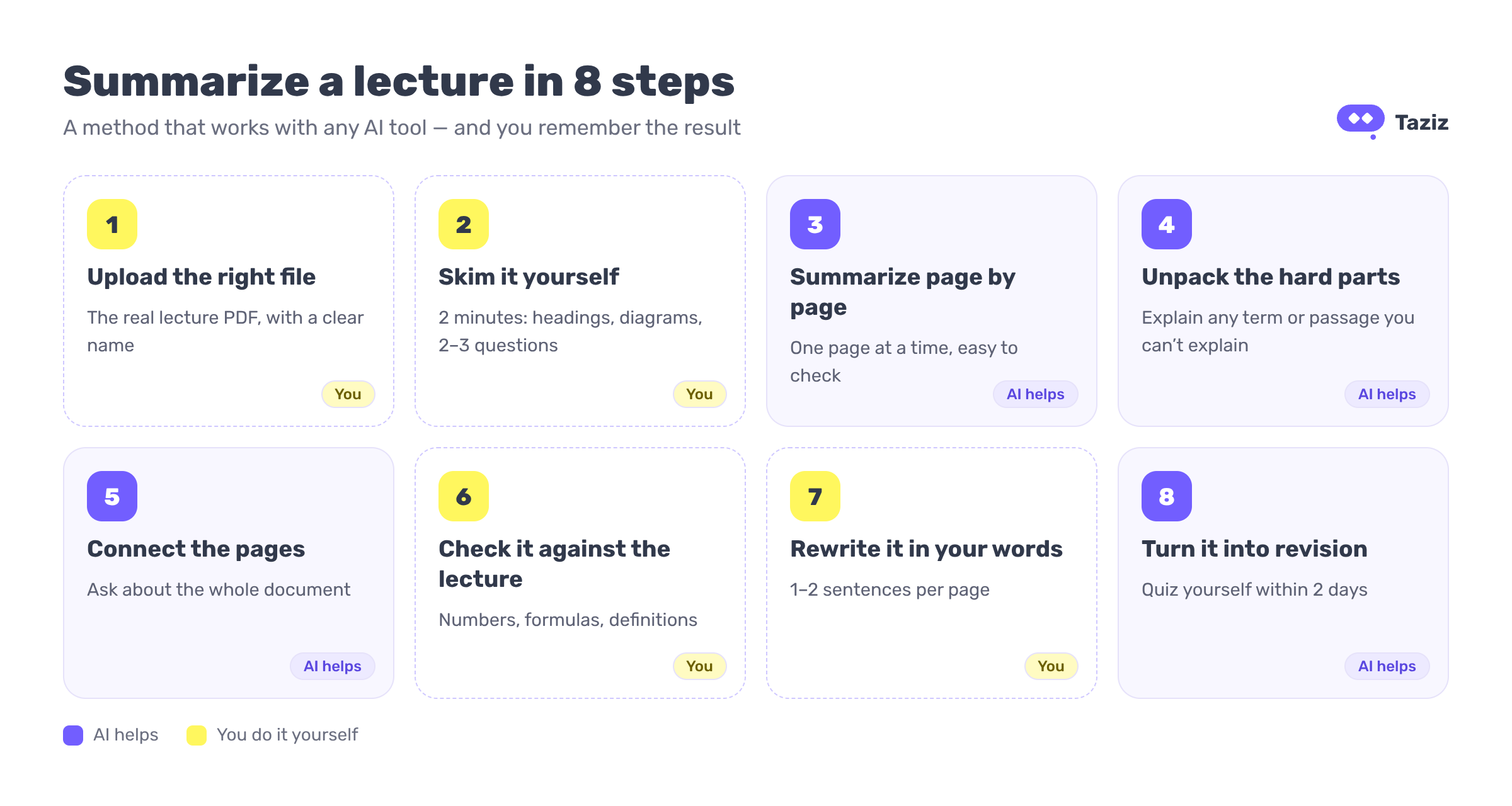
[The 8 steps to summarize a PDF lecture with AI: upload, skim, summarize page by page, unpack hard parts, connect the pages, check, rewrite in your own words, revise]
First: what does a good lecture summary look like?
Before you ask any tool for a summary, know what you're aiming for. A useful lecture summary is short, but it isn't just "the text, shorter". It has:
The big idea in one or two sentences: what is this lecture actually about?
Key terms with a one-line meaning each. If your exam is in English, keep the terms in English.
The process or argument: how the ideas connect, step by step.
Formulas, numbers and one worked example, copied exactly.
Your questions: what you still don't get. This part is what makes the next study session useful.
Page numbers, so you can always go back to the source.
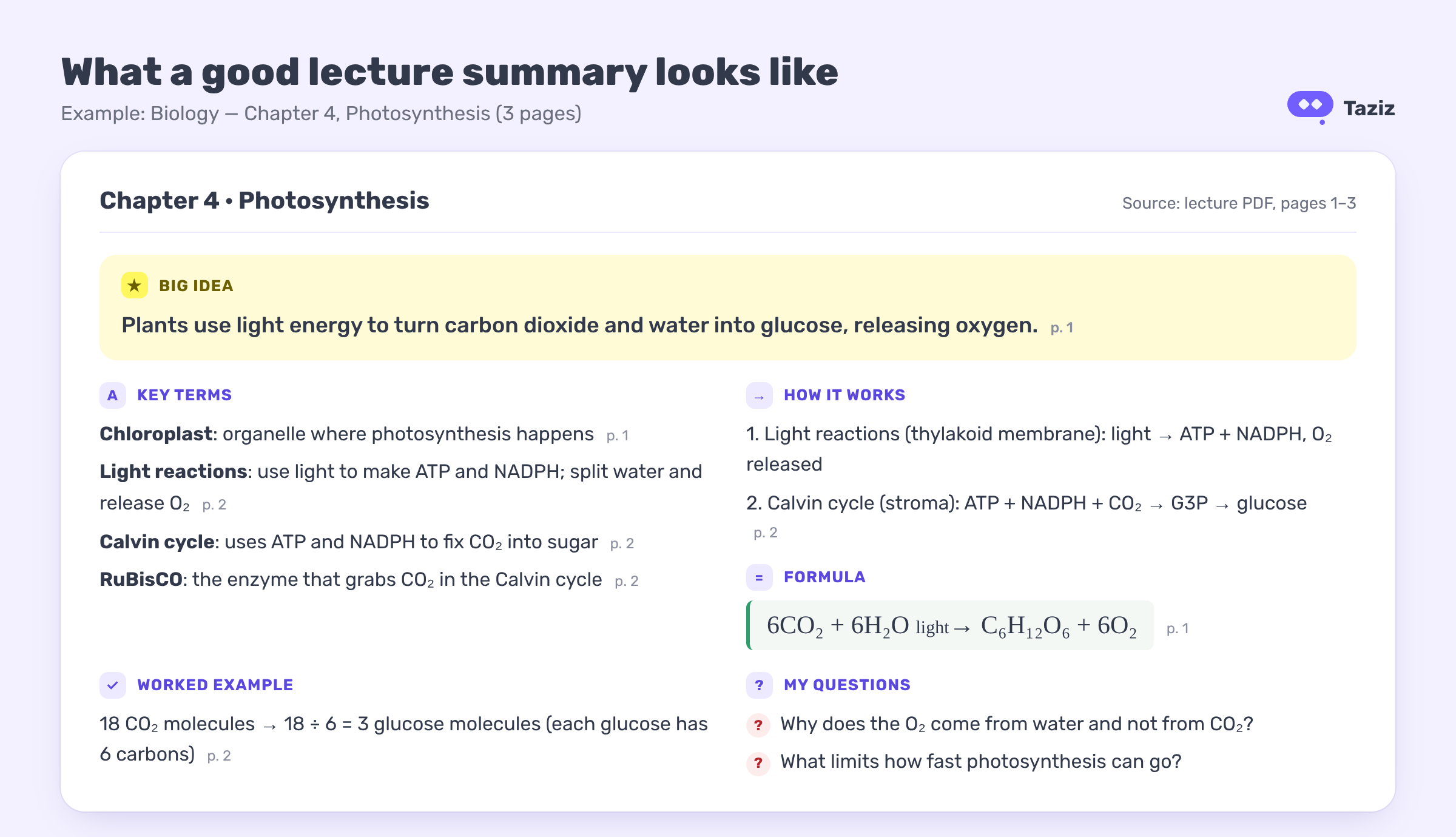
[Example of a one-page lecture summary for a photosynthesis chapter, with big idea, key terms, process, formula, worked example and open questions]
Step 1: Upload the right file
Start with the actual lecture PDF your instructor shared, not a screenshot or a classmate's notes. Give it a name you'll recognize later, like "Biology — Chapter 4: Photosynthesis", not "lec4_final_v2.pdf".
In Taziz: tap Upload in your library and pick the PDF (PDF only, up to 25 MB). Taziz asks you to name the document, or you can skip and keep the original filename. If the PDF is scanned (photos of pages rather than real text), Taziz offers to extract the text first so the AI can read it. Your first scanned documents are extracted for free.
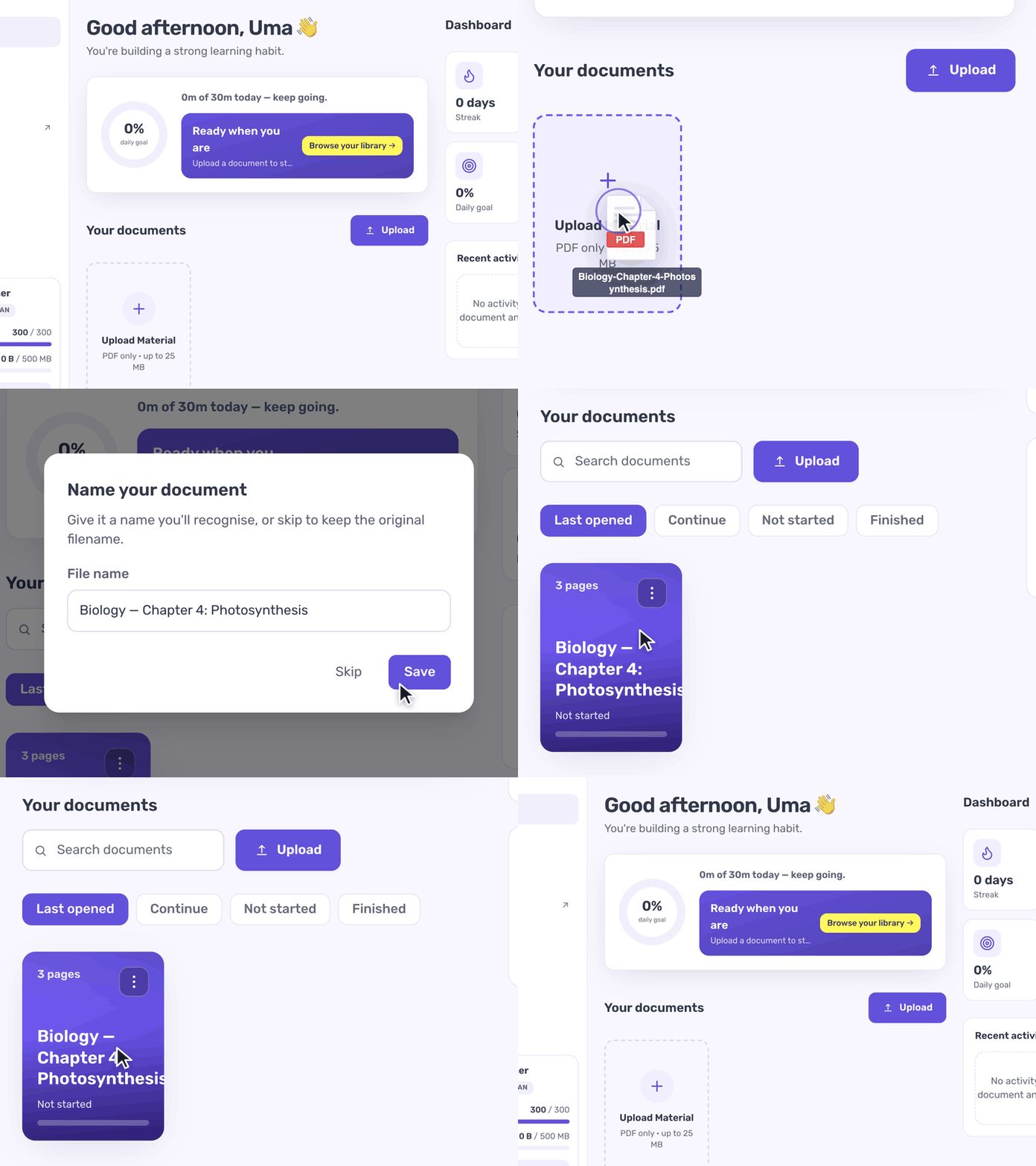
[Uploading a PDF lecture to Taziz and naming the document]
Step 2: Skim it yourself first (2 minutes)
Don't let the AI read the lecture before you do. Flip through it once: headings, bold words, diagrams, tables and the last slide. Then write down two or three questions you expect the lecture to answer.
This takes two minutes, and it changes everything that follows. You'll notice when a summary skips something important, and you'll read the AI's output with your own questions in mind instead of nodding along.
In Taziz: move between pages with the arrows at the bottom and zoom in on dense slides or small tables.
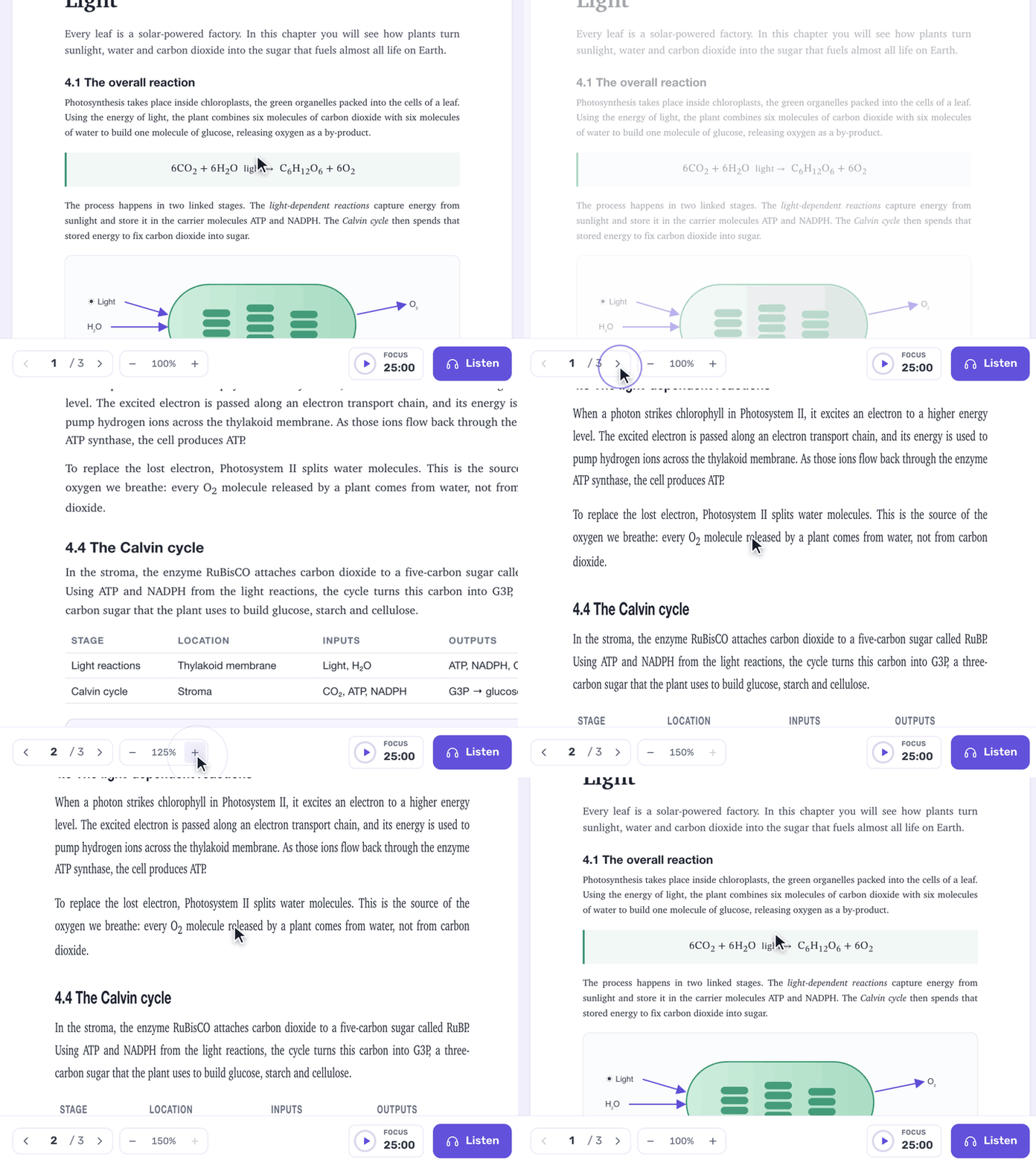
[Flipping between PDF pages and zooming in Taziz]
Step 3: Summarize page by page, not the whole file at once
Asking for one summary of a 40-page file gives you something vague and hard to check. A summary of one page stays close to what's on that page, so you can compare it with the original in seconds.
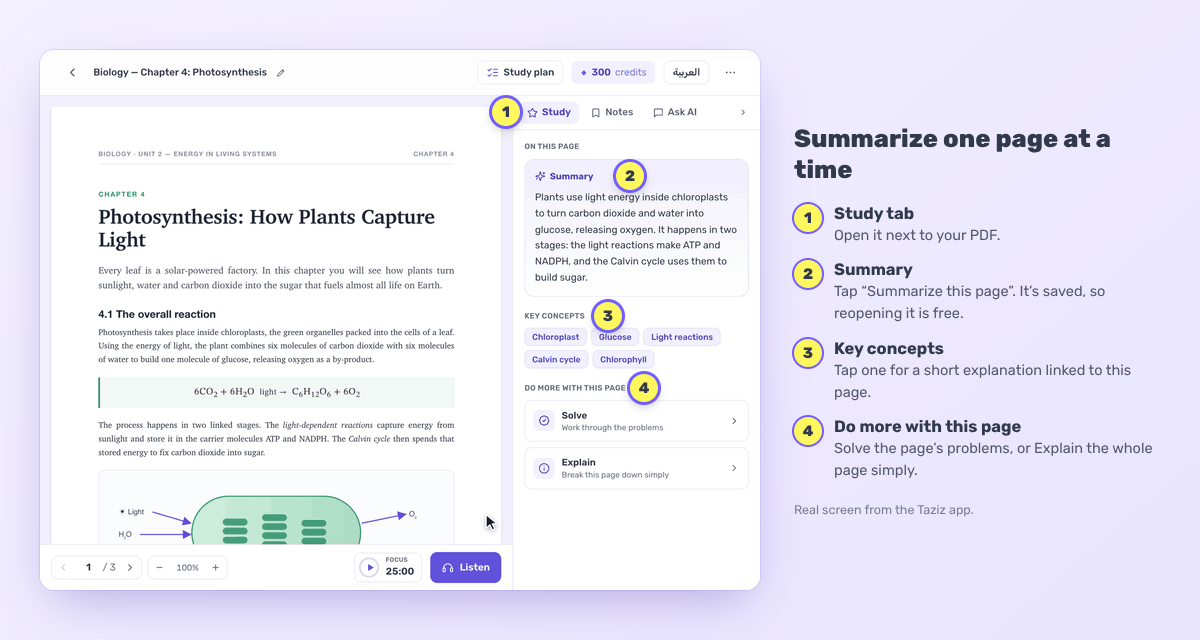
In Taziz: open the Study tab next to your PDF and tap Summarize this page. You get a short summary of the page you're on, plus its Key concepts. It costs a few credits the first time, and it's saved, so opening it again is free. Move to the next page and repeat.
[Taziz Study tab showing the page summary, key concepts and the Solve and Explain options next to a lecture PDF]
Step 4: Unpack the parts you don't understand
A summary tells you what the lecture says. It doesn't make a confusing paragraph clear. When you reach a sentence or a term you can't explain, stop and deal with it now.
In Taziz:
Tap any Key concept under the summary to get a short explanation of it, linked to that page.
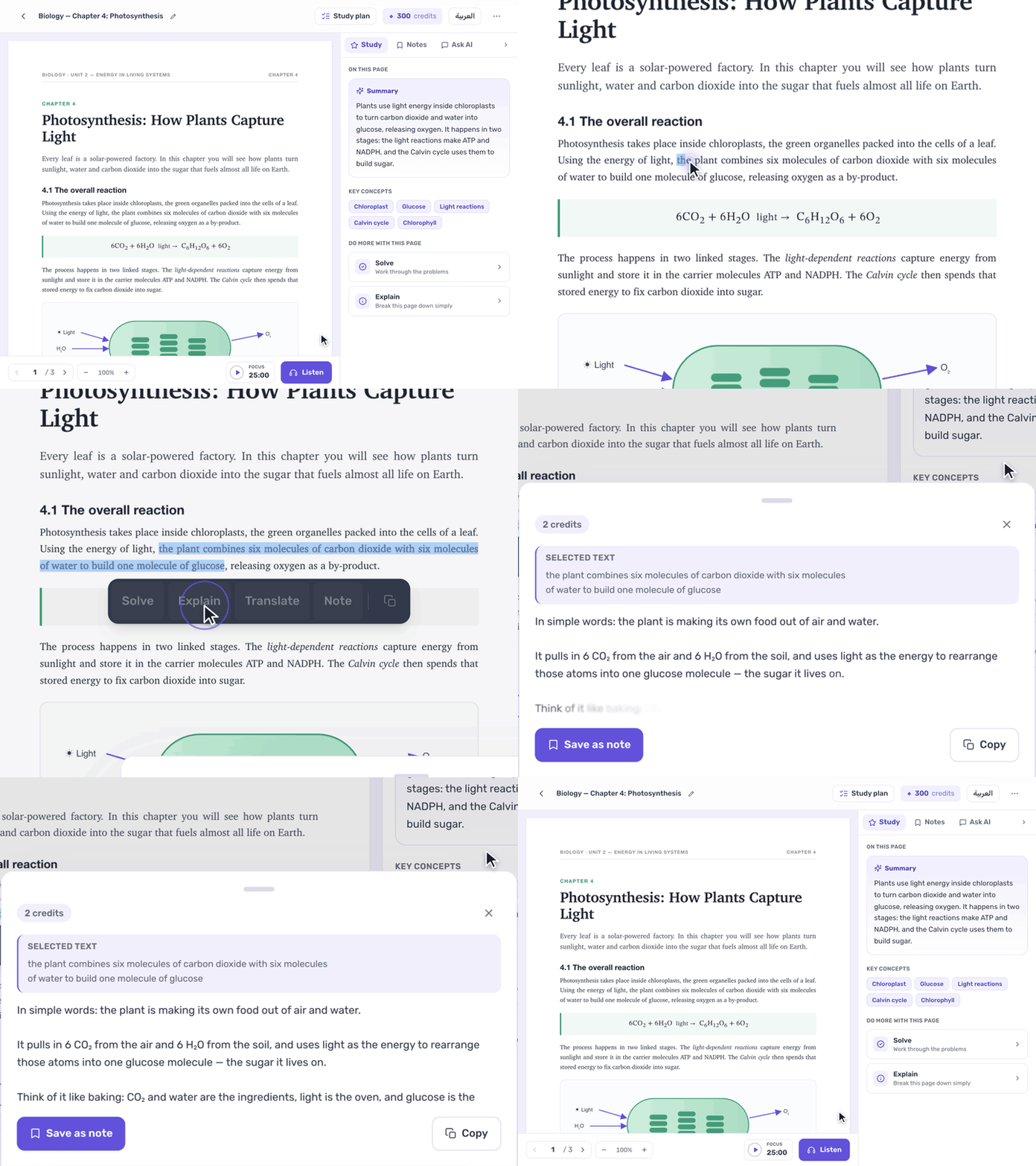
Highlight a confusing passage and choose Explain for a simple explanation of exactly that text. Solve walks you through a problem step by step, and Translate helps with difficult English.
Under Do more with this page, choose Explain to break the whole page down simply.
[Selecting a passage in a Taziz PDF and choosing Explain to get a simple explanation]
Step 5: Connect the pages into one picture
Page summaries are the building blocks. Now you need the big picture: how the pages fit together, and what the lecture is really trying to teach you.
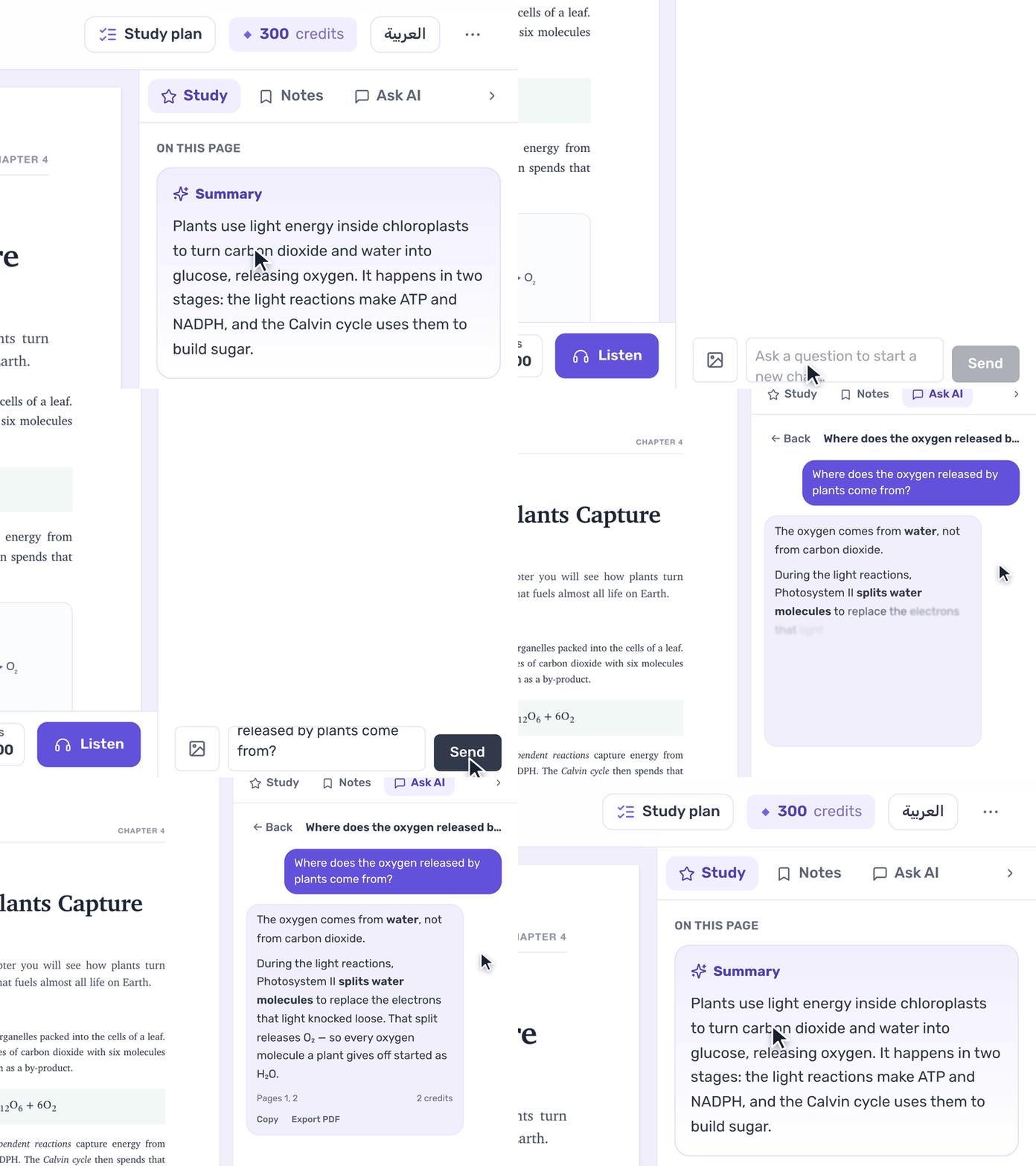
In Taziz: open Ask AI and ask about the whole document. Each answer shows which pages it used, so you can go back and check, and you can Copy it or Export PDF. Try one of these prompts:
"Summarize pages 1–3 in 5 bullet points. Keep the technical terms in English."
"What are the 3 most important ideas in this document, and how do they connect?"
"List every definition in this lecture with a one-line explanation."
"Here's my summary: [paste]. What did I miss or get wrong?"
[Taziz Ask AI answering a question about the open document and showing the pages it used]
Step 6: Check it against the lecture
AI summaries can be wrong in small ways that cost marks: a number off, a definition simplified too far, two terms mixed up. Before you trust a summary, check it against the PDF:
Formulas and numbers: compare them character by character.
Definitions: does the summary match how your instructor defined the term?
Anything surprising: if it's not on the page, ask where it came from.
This is why page-by-page summaries and answers that show their pages matter: checking takes seconds instead of a search through 40 pages.
If you can't point to the page a sentence in your summary came from, don't study from that sentence.
Step 7: Rewrite it in your own words
This is the step most students skip, and the one that matters most. Putting an idea in your own words forces you to understand it, and that's what makes it stick. Copying an AI summary into your notes only moves text from one place to another.
Keep it short: for each page, write the main point in one or two sentences, plus any formula or definition exactly as it appears in the lecture.
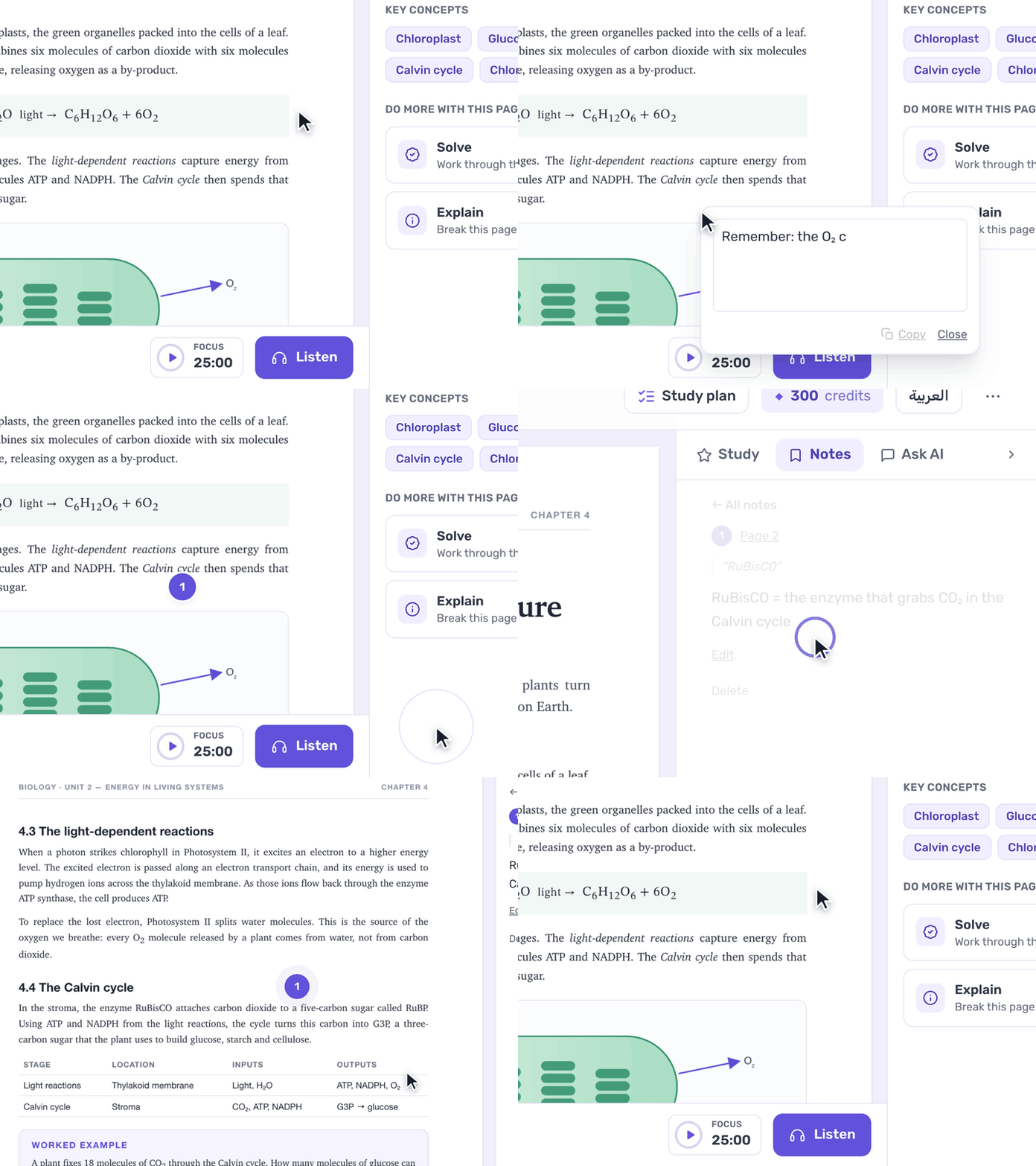
In Taziz: double-click anywhere on the page to add your own note there, or tap Save as note on an AI explanation and add your comment. Every note is listed by page in the Notes tab, and one tap takes you back to where you wrote it.
[Adding a note on a PDF page in Taziz and finding it again in the Notes tab]
Step 8: Turn your summary into revision
A summary is not the finish line. It's your revision material. Use it to test yourself, not just to re-read:
Ask AI to quiz you: "Ask me 5 exam-style questions about this document, one at a time. Don't show the answer until I try."
Cover your notes and explain each page out loud. Whatever you can't explain goes back on your list.
Review again after a day or two. Short reviews spread out over time beat one long session the night before.
In Taziz: tap Listen and choose Explain to hear an AI explanation of the page in the language you choose. It's a good way to review on the bus or when your eyes need a break.
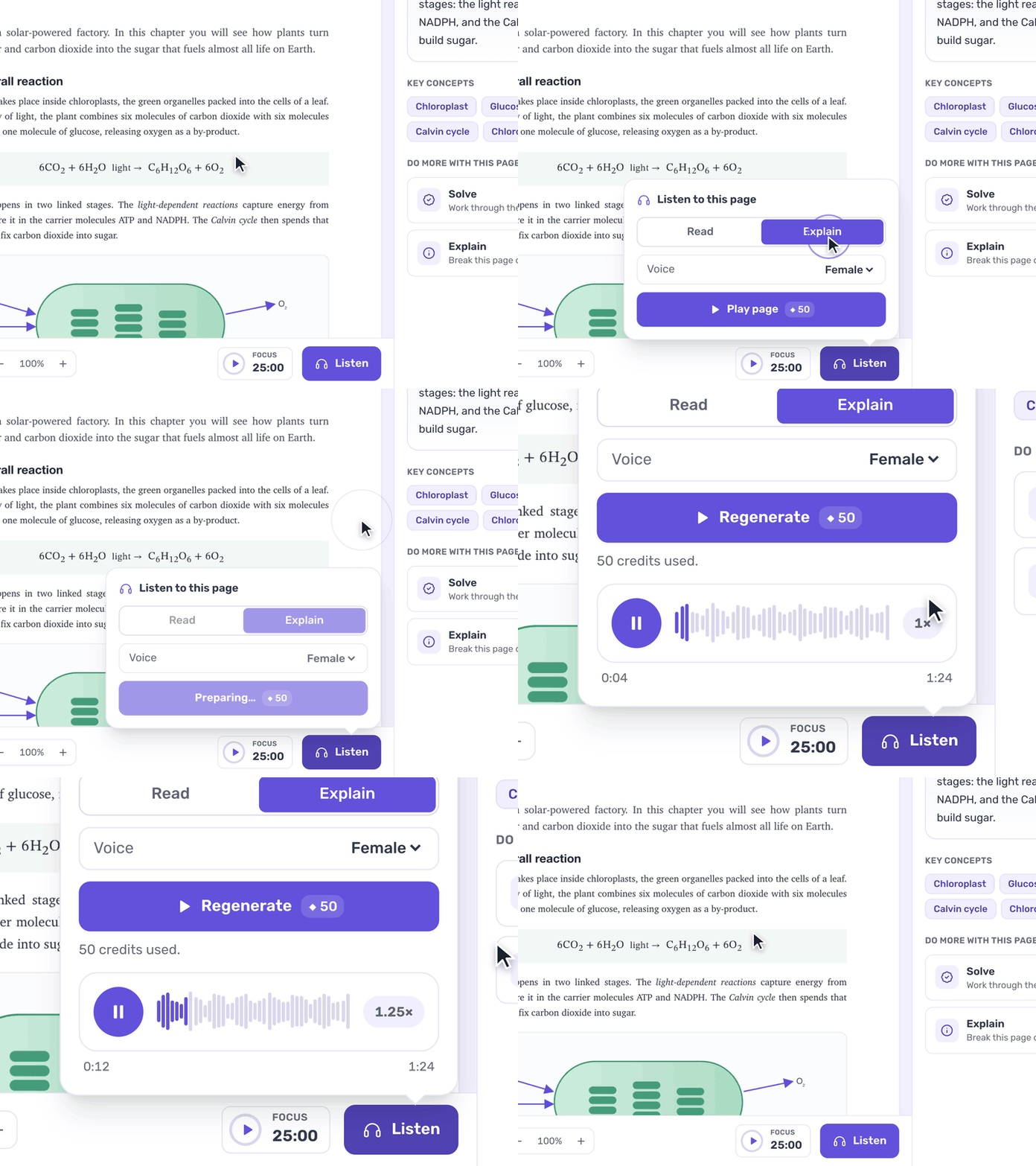
[Taziz Listen panel playing an audio explanation of the page]
Five mistakes to avoid
Summarizing the whole file in one go. You get something vague that you can't check.
Letting the AI read first. Skim it yourself, even for two minutes.
Trusting it without checking. Numbers, formulas and definitions always go back to the page.
Never writing anything yourself. Reading a summary feels like studying. Writing one is studying.
Using the summary instead of the lecture. It's a map of the material, not a replacement for it. Read more about using AI the right way in our back-to-university guide.
Your quick checklist
Upload the real lecture PDF and give it a clear name.
Skim it for 2 minutes and write 2–3 questions.
Summarize page by page with Summarize this page.
Explain anything unclear before moving on.
Ask AI to connect the pages, then check every number and definition.
Rewrite each page's main point in your own words.
Quiz yourself from your summary within two days.
Your next lecture is the perfect place to try it. 💜